FIELD NOTE 04 / CAMERA SETUP
Add a webcam frame in OBS.
Put a transparent PNG above your camera, crop the video to its opening, and keep both aligned when resizing.
Choose a frame with a transparent opening
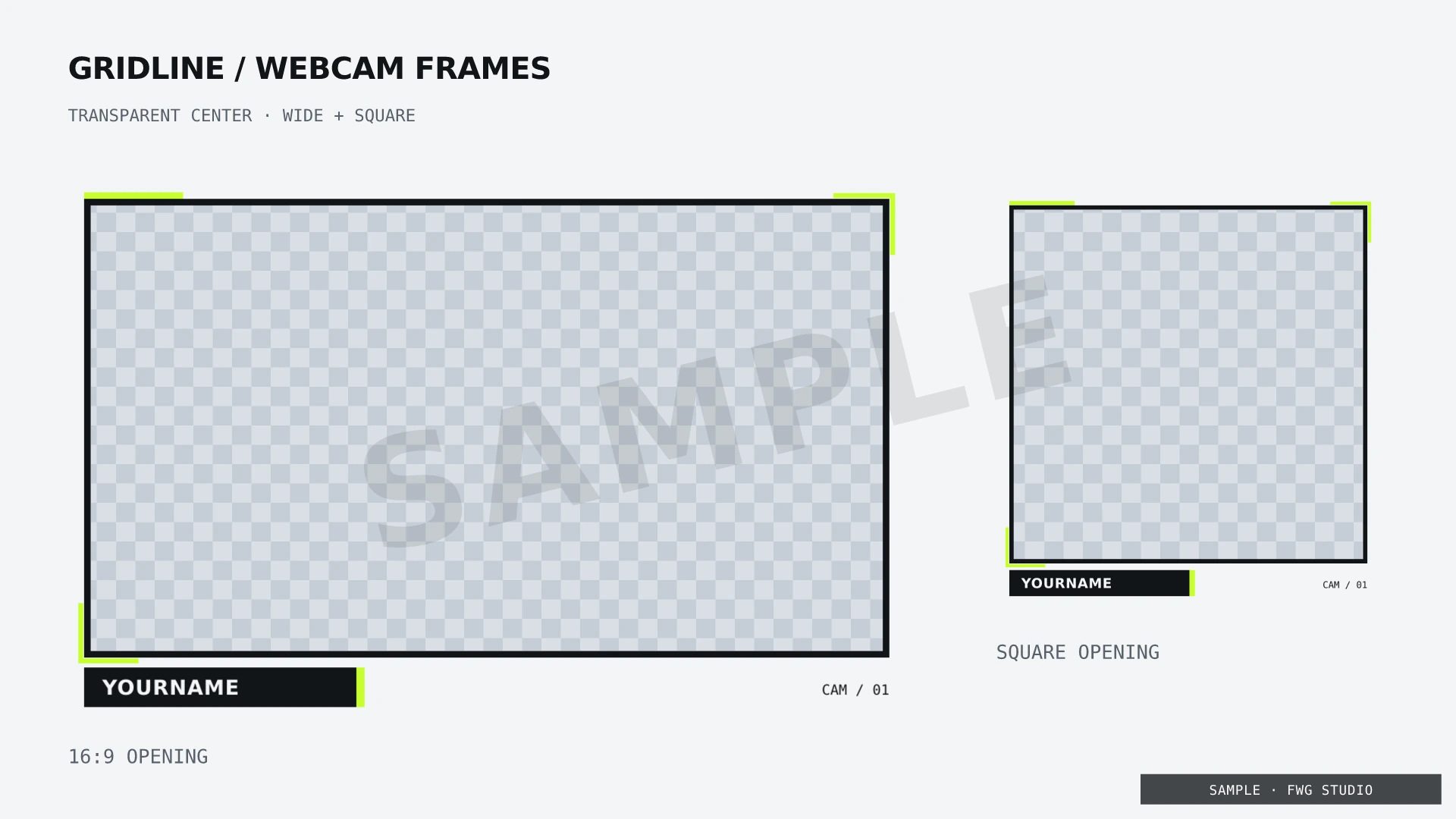
A webcam frame is an image placed over your camera video. The PNG’s transparent center lets the camera show through; the border and name strip stay visible above it. A screenshot of a preview includes its background and watermark, so use the original downloaded PNG in OBS.
Every complete FWG Studio pack includes webcam/webcam-wide.png and webcam/webcam-square.png. The free Gridline sample includes a Starting Soon scene and About panel, but no webcam frame.
Add the camera, then the frame
- Open your live scene. In Sources, select + → Video Capture Device on Windows or macOS. On Linux, use the Video Capture Device (V4L2) source. Select your webcam in the source properties.
- Confirm the camera picture works before adding artwork. Choose a resolution and frame rate supported by your device.
- Add + → Image, name it “Webcam frame,” and browse to the extracted wide or square PNG.
- Move “Webcam frame” above your camera in the Sources list. Put your game or other background below both.
Higher entries cover lower entries in OBS. If a full-screen scene image is above the camera and frame, it can cover the entire result. See the official OBS Sources guide and video capture reference.
Match the camera to the opening
| Frame | PNG size | Camera opening | Opening position |
|---|---|---|---|
| Wide | 1024 × 640 | 960 × 540 (16:9) | 32 px right, 24 px down |
| Square | 704 × 740 | 640 × 640 (1:1) | 32 px right, 24 px down |
Those offsets are measured from the frame PNG’s top-left corner, not from the canvas edge. Start with both sources at their original size and use Transform → Edit Transform to inspect their position and size. For example, a wide frame at canvas position (100, 100) places its camera opening at (132, 124).
Resize the camera proportionally to fill the opening. Crop excess video using the transform controls, or hold Alt on Windows / Option on macOS while dragging an edge handle. Avoid stretching a widescreen camera into a square: crop its sides instead. Transform cropping changes this scene item; a Crop/Pad filter changes the base source and can affect its use in other scenes. OBS Crop/Pad reference.
For a 1920 × 1080 camera picture going into the square frame at original size, a centered square crop removes 420 pixels from each side, leaving 1080 × 1080. Scale that remaining picture to 640 × 640. This example assumes the camera source actually outputs 1920 × 1080.
Resize the finished pair together
Once the camera fills the opening, select the camera and frame together and group them. Resize the group proportionally, position it where it leaves your game interface readable, then lock it. Keep your microphone and game audio outside this visual group.
At 50% scale, the wide frame is 512 × 320 with a 480 × 270 opening, starting 16 px right and 12 px down. The square frame becomes 352 × 370 with a 320 × 320 opening. Scaling only one source breaks that alignment.
Fix gaps, solid centers, and hidden cameras
- The middle is a checkerboard or solid block
- Re-select the original transparent PNG, rather than the website preview or a JPEG export. OBS Image sources support PNG transparency.
- The camera disappears
- Check the camera’s eye icon, device selection, and source order. Temporarily hide the frame to check whether the camera itself is working.
- A strip of background shows inside the frame
- The camera does not fully cover the opening. Adjust its crop and size, then check all four edges at normal broadcast size.
- The face looks stretched
- Reset the camera transform and resize proportionally. For a square layout, crop a widescreen source before sizing it to the square opening.
- The frame still says YOURNAME
- Edit the supplied frame SVG and export a transparent PNG. The local HTML scene editor personalizes full-screen browser scenes; it does not alter webcam PNGs.
Follow the personalization guide, or compare the webcam-frame previews before choosing a pack.