THE FIELD NOTES / FWG STUDIO
OBS overlay guides.
Great starts.
Set up static or animated artwork, align a webcam frame, fix a Browser source, and plan your scene changes. Follow practical OBS steps, then build a setup plan for your pack below.
8 of 8 guides
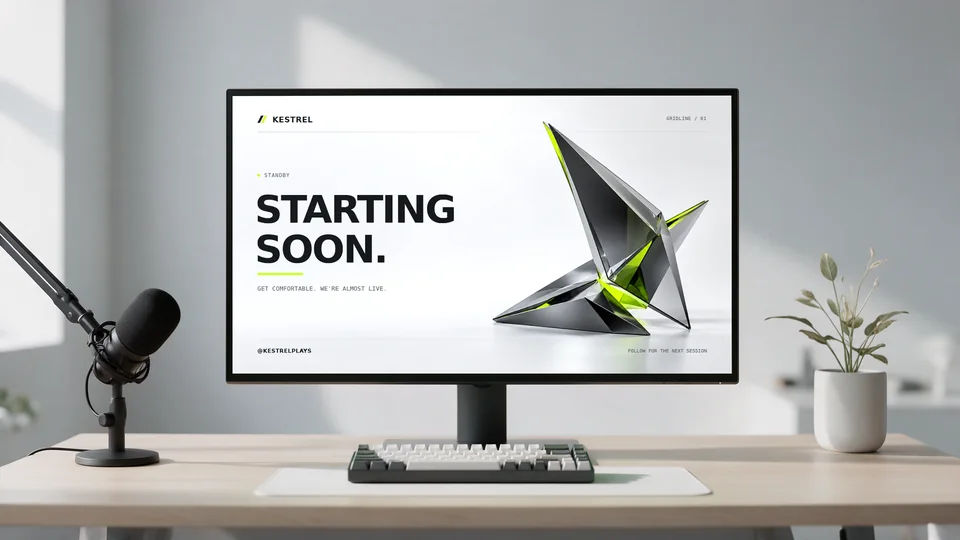 Start with the essentials
Set up your stream overlay in OBS.
Build your OBS scenes, place your camera, and choose the right source for each file.
Personalize your stream overlays.
Add your channel name to a local HTML scene, or edit the SVG artwork for a custom PNG.
Your pre-stream checklist.
Check your OBS picture, sound, scenes, and privacy before going live. Save your progress in this browser.
Add a webcam frame in OBS.
Put a transparent PNG above your camera, crop the video to its opening, and keep both aligned when resizing.
Make a Starting Soon screen in OBS.
Start with a free 1920 × 1080 PNG, or load a personalized local HTML scene from a complete FWG Studio pack.
Add animated overlays to OBS.
Choose the right source for static or moving artwork, export a local HTML scene, and check its motion before going live.
Fix a blank OBS Browser source.
Check the file path, rendering size, source order, and refresh settings to find why a local browser scene is blank or stale.
Build a dependable OBS scene workflow.
Plan Starting Soon, Live, BRB, and Ending scenes, rehearse transitions, and back up the scene collection with its source files.
MAKE A PLAN / KEEP IT HANDY
Your route into OBS.
Choose your complete pack and workflow. Get a practical setup checklist to follow on your own computer.
NO ACCOUNT
Gridline / Static scenes / No frame
A manual checklist, not an importable OBS configuration. This does not download the pack or install any sources.
- Extract your complete Gridline pack ZIP into a permanent folder. Keep the README, licence, and an untouched backup. This plan assumes the complete pack, not the free PNG sample.
- Create your OBS scenes. The scene artwork is 1920 × 1080; match your base canvas if appropriate, or fit it proportionally to your existing canvas and check your other scenes.
- For each state, add an Image source and choose its PNG: scenes/starting.png, scenes/brb.png, scenes/ending.png, or scenes/offline.png. Fit the image without stretching it.
- To change static names or colours, install the supplied TTF fonts, edit the SVG originals, and export fresh PNGs at the original dimensions. PERSONALIZE.html does not change static PNGs.
- No camera frame selected. Keep the live scene focused on your game or other capture; add and test that capture separately.
- Inspect every scene at broadcast size for placeholder text, cropping, missing files, and unsupported characters. Record a short rehearsal and listen back to microphone and game audio before going live.
START SMALL
Try the workflow first.
The free Gridline sample has a static Starting Soon PNG, an About panel, and setup instructions. A useful first step before choosing a complete pack.