FIELD NOTE 05 / SCENE SETUP
Make a Starting Soon screen in OBS.
Start with a free 1920 × 1080 PNG, or load a personalized local HTML scene from a complete FWG Studio pack.
Start with a PNG or a local HTML scene
A Starting Soon screen gives viewers a clear opening while you finish getting ready. In OBS, make it a separate scene so you can switch to your live layout when you are ready. The artwork does not start your broadcast or choose the moment to switch scenes.
For a simple first setup, the free Gridline overlay sample supplies a static starting.png at 1920 × 1080. Complete packs also include editable artwork and a local PERSONALIZE.html editor for saving browser scenes with your own name, handle, and message.
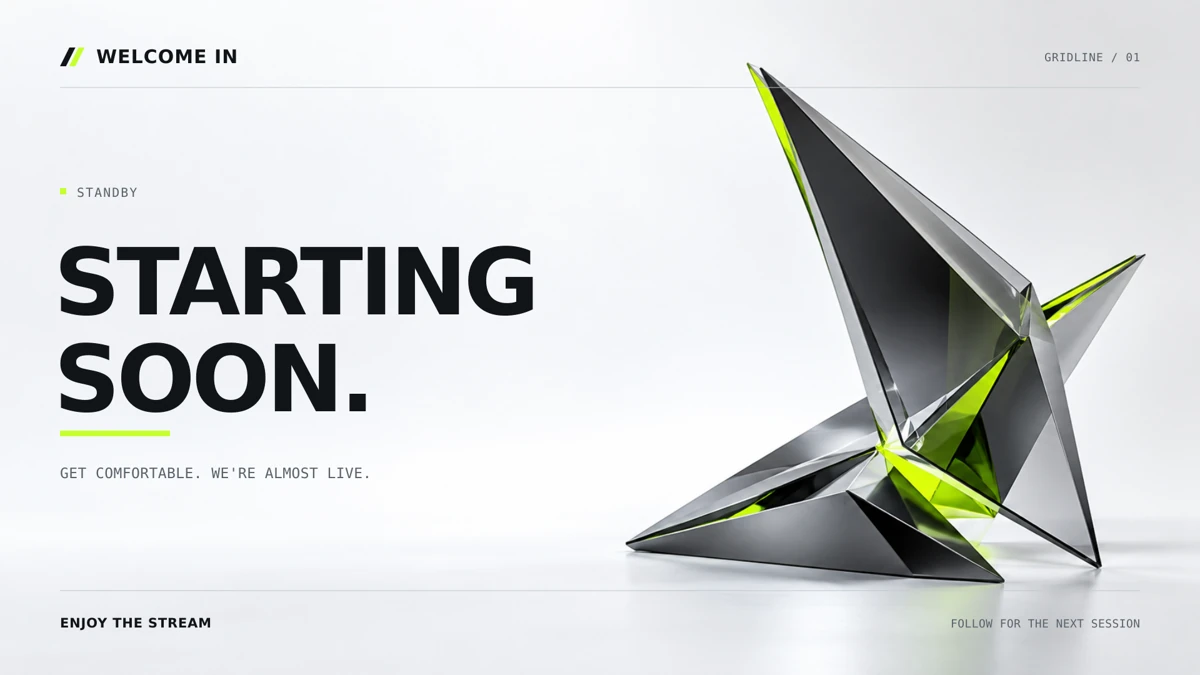
Set up the free static screen
- Download and extract the free ZIP into a permanent stream-assets folder.
- In OBS, add a scene named “Starting Soon” using the + button in the Scenes dock.
- In that scene’s Sources dock, choose + → Image. Select the extracted
starting.png. - Check Settings → Video → Base (Canvas) Resolution. The artwork is 1920 × 1080. If your canvas already matches, use Transform → Fit to Screen on the image.
- Keep the image’s proportions on a different canvas. Fit to Screen may leave space on a canvas with a different aspect ratio; stretching would distort the design. Changing the base canvas also changes the layout space for your other scenes.
- Lock the finished source and inspect the full screen. The Output (Scaled) Resolution controls your output size separately from the base canvas.
The PNG is a still image with fixed, generic text. It will not animate or add your channel name. For the underlying source behavior, see OBS Image sources and the OBS overview.
Use a personalized browser scene
- Extract a complete FWG Studio pack and open its
PERSONALIZE.htmlin a desktop browser. - Enter your channel name and handle, select Starting Soon, and set your optional tagline. Preview the full text, then choose Download OBS scene.
- Save the downloaded HTML in your permanent assets folder. Add an OBS Browser source to your Starting Soon scene.
- In the Browser source properties, enable Local file and choose that saved HTML. Set Width: 1920 and Height: 1080.
- Fit the source proportionally to your canvas. If you replace the saved file, use the source’s refresh control to reload it.
The saved HTML embeds its artwork and fonts. Its selected state and text remain fixed until you export another file. Subtle decorative motion is available, but it is not a live countdown or an automatic stream-status indicator. Use a separate saved file and scene for BRB or Ending. Official OBS Browser source properties.
Try the Starting Soon preview to compare the look. To create the usable personalized HTML file, use the editor in your downloaded complete pack.
Rehearse the opening, including audio
Make a short local recording: begin on Starting Soon, switch to your live scene, then stop the recording and watch it back. Confirm that the scene fits, text stays readable, and the intended camera or game appears when you switch.
Check the Audio Mixer during that rehearsal. A scene image does not mute your microphone or game audio. Decide what should be heard during the opening and verify your actual OBS audio setup. Use the pre-stream checklist for privacy and sound checks before broadcasting.
When the opening screen looks wrong
- The Browser scene is clipped or has scrollbars
- Open its properties and check Width 1920 and Height 1080. These are the browser’s rendering dimensions, not the stream output dimensions.
- The Image source is blank
- Confirm the ZIP was extracted and the file has not moved. Re-select the PNG at its current path and check source visibility.
- The name has not changed
- The free sample PNG keeps its fixed, generic text. Channel-name personalization requires a complete pack. Use the full pack’s local editor for personalized HTML, or edit the supplied SVG and export a new PNG.
- The scene still shows Starting Soon after you go live
- Switch to your live scene manually. This artwork does not detect the state of your broadcast or automatically change OBS scenes.
Want a matching camera frame and BRB screen? See the complete Gridline pack, or compare the pack styles.